
Show a video in full-screen mode
All Onsego lessons include a video. You can watch lesson videos in full-screen mode in two ways:
Option 1: Use Presenter Mode (works on all devices)
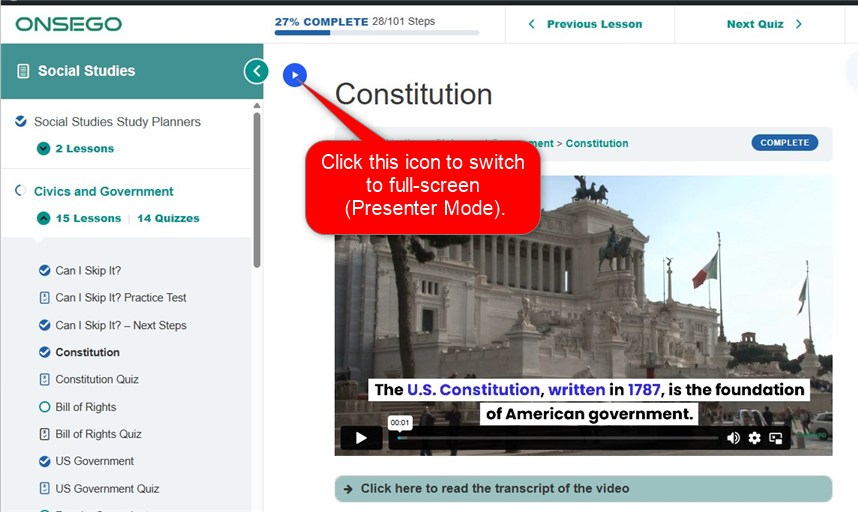
You can use the built-in Presenter Mode to view the video in full screen.
- Click the blue arrow icon in the top corner of the lesson page
- The icon is located above the lesson title
- This will open the video in full-screen presenter mode
Option 2: Use the video player full-screen option (mobile)
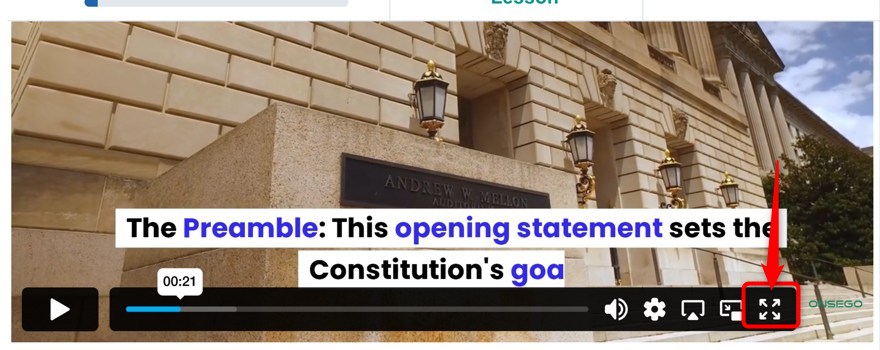
On mobile devices, you can also use the video player’s full-screen option. On mobile phones, the full-screen button only appears after you rotate your phone.
- Start the video
- Rotate your phone to landscape mode
- Tap the full-screen icon in the bottom-right corner of the video player
(a square with four arrows pointing outward)
Summary
- Full-screen does not start automatically; you need to activate it using one of the methods mentioned above.
Last Updated on January 11, 2026